

 Türkçe
 English
Must-Have Mac Apps
Dear Mac users,
I put together this list of great apps that will enrich your Mac experience and boost your productivity. This is really a rundown of the tools I use myself — installing everything on this list is the first thing I do whenever I get a new Mac. We’ll go through the apps by category, each with its own screenshot.
Table of Contents
Productivity & Workflow Tools
-
Raycast
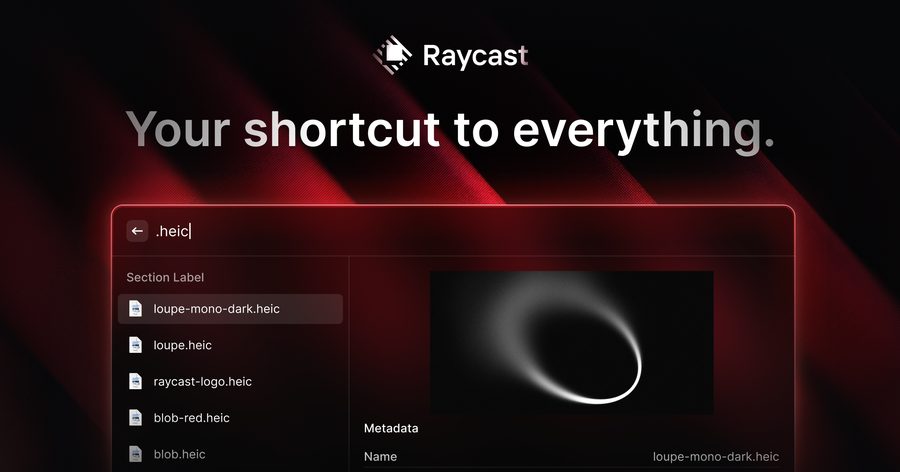
Think of it as Spotlight on steroids. Launching apps, doing quick calculations, digging through clipboard history — most of my daily busywork happens here without ever touching the mouse. The extension store is also huge, covering everything from window management to Jira integrations.
-
Better Touch Tool
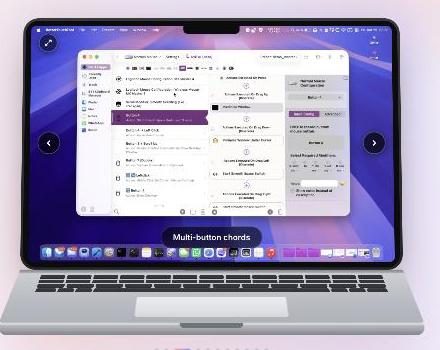
Lets you reshape your trackpad and Touch Bar however you like. The initial setup can feel a bit overwhelming, but once you’ve defined your own gestures, there’s no going back.
-
Maccy
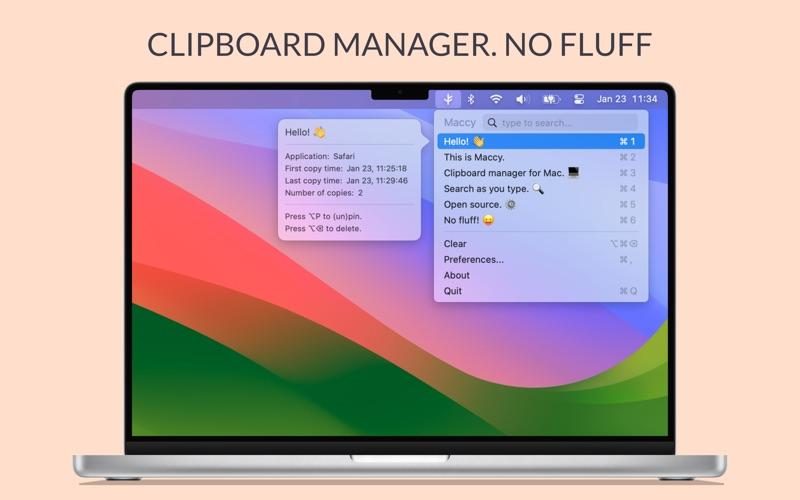
A simple clipboard manager that genuinely saves the day more often than you’d expect. It keeps everything you’ve copied and lets you pull anything back with a shortcut. No ads, no clutter, free — hard to ask for more.
-
Alfred [Recommended]
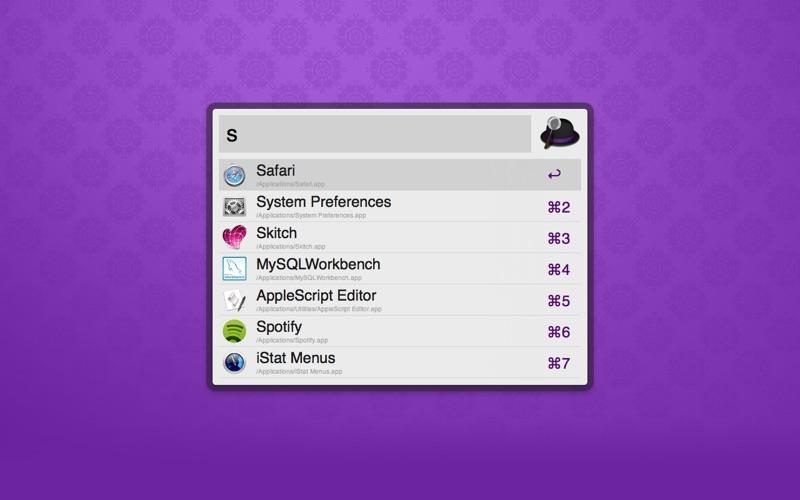
I used Alfred for years before switching to Raycast — it’s a mature, rock-solid app launcher. Its workflow system is powerful, and it really shines once you unlock the extra features with the Powerpack.
-
Contexts
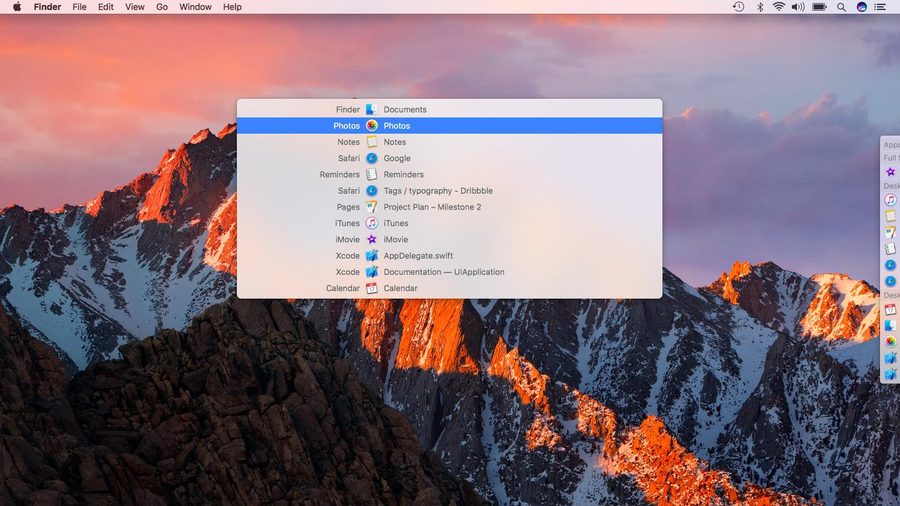
For when Cmd+Tab just isn’t cutting it anymore. It lists every open window in a sidebar so you can jump between them far faster than cycling through the app switcher.
-
Dropover
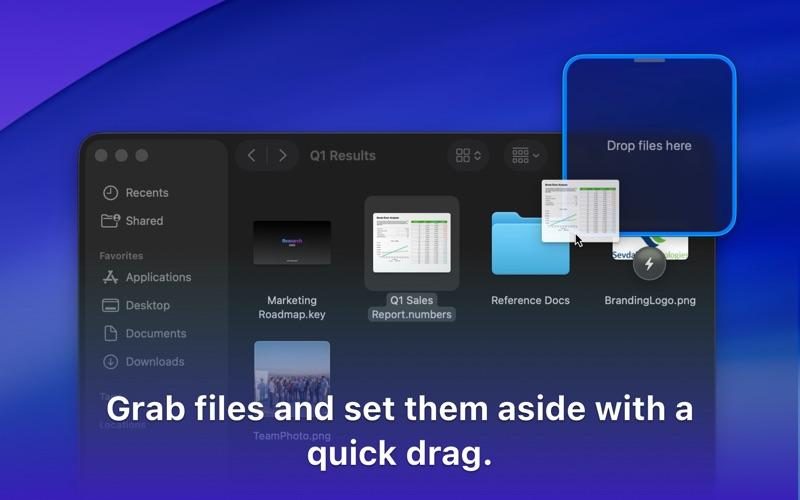
Drag a file to the edge of the screen and it parks itself on a little "shelf" until you’re ready to drop it somewhere else — a different window, a different folder. Small utility, but one I reach for constantly.
-
iStat Menus [Recommended]

If you want CPU, memory, disk, network, and battery stats live in your menu bar, nothing beats this. It’s paid, but worth it long-term — especially for figuring out why your Mac suddenly slowed down.
System & File Management
-
AlDente

For anyone trying to extend battery lifespan: it lets you cap charging at, say, 80%. Makes a real difference if your MacBook spends most of its life plugged in.
-
AppCleaner
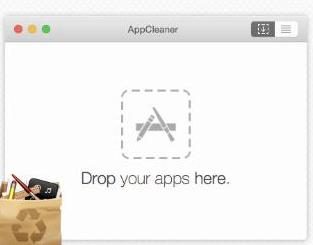
Drag an app onto it and it finds every related file — preferences, caches, logs — and removes them with it. A much cleaner uninstall than macOS’s default "drag to Trash" approach.
-
Monitor Control Lite
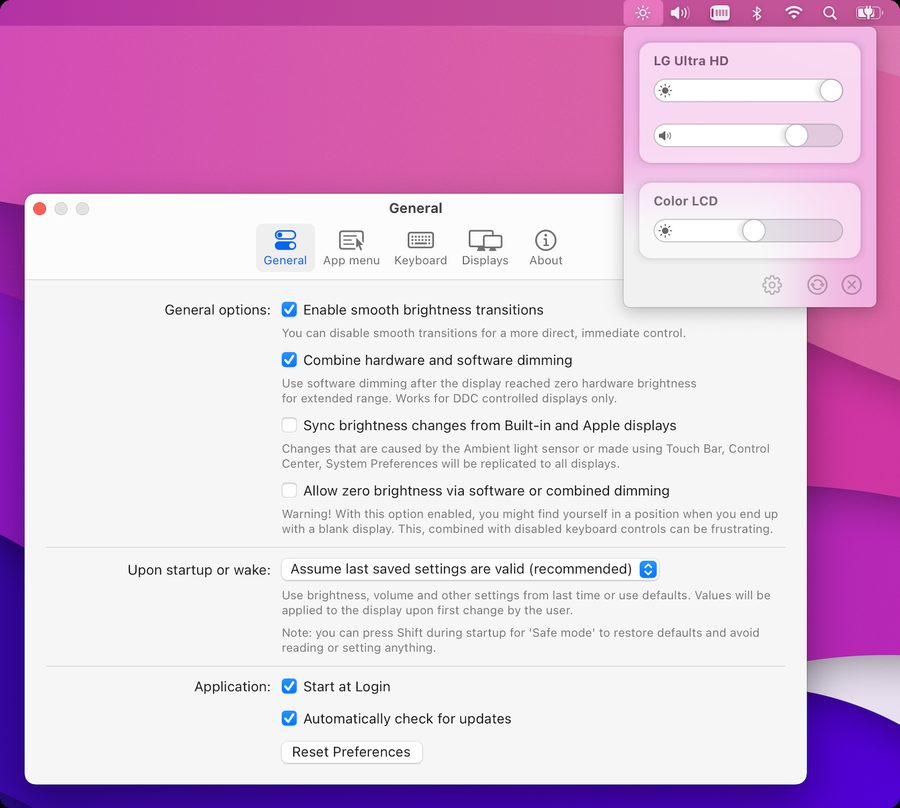
Lets you control an external monitor’s brightness and volume with your Mac’s own keyboard keys. A simple problem solved cleanly — almost essential if you run a multi-monitor setup.
-
DaisyDisk [Recommended]
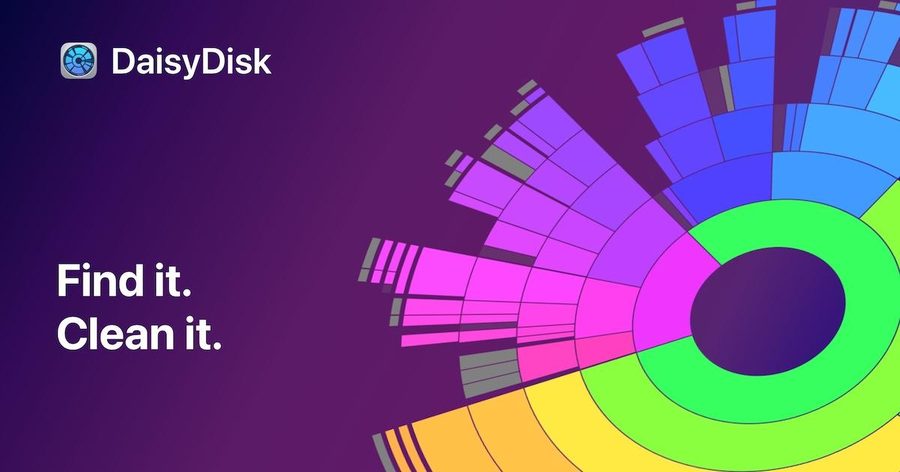
When your disk is full and you have no idea why, DaisyDisk’s visual map sorts it out in a minute. I usually open it every six months or so for a cleanup pass.
-
Homebrew [Recommended]
Once you get used to typing
brew installin the terminal, going back to hunting through the App Store feels like a chore. If you’re a developer you probably already have it; if not, start today. -
The Unarchiver
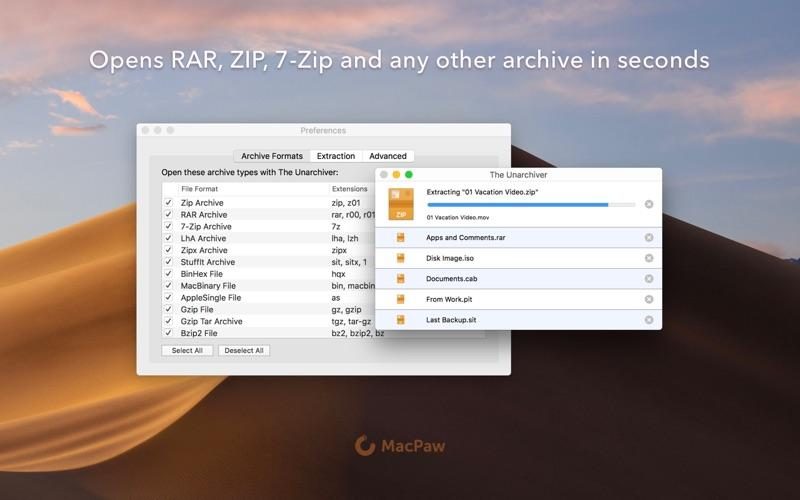
macOS’s built-in archive tool only really handles zip files — the moment a RAR, 7-Zip, or old Windows archive shows up, this is what steps in. Install it once and forget about it until you need it.
Media & Design
|
Note
|
Affinity Photo, Designer, and Publisher were unified into a single app — Affinity — after Canva’s acquisition. The three entries below now point to the same app. |
-
Affinity Photo

A solid alternative to Photoshop if you’d rather pay once than subscribe forever. Its layers, masking, and retouching tools hold up fine for real professional work.
-
Affinity Designer

Offers an Illustrator-like experience on the vector side. This is the one I keep coming back to for logos, icons, and simple illustration work.
-
Affinity Publisher

The InDesign equivalent for anything that needs real page layout — brochures, ebooks, catalogs. The least talked-about member of the Affinity family, but just as useful.
-
Screen Studio
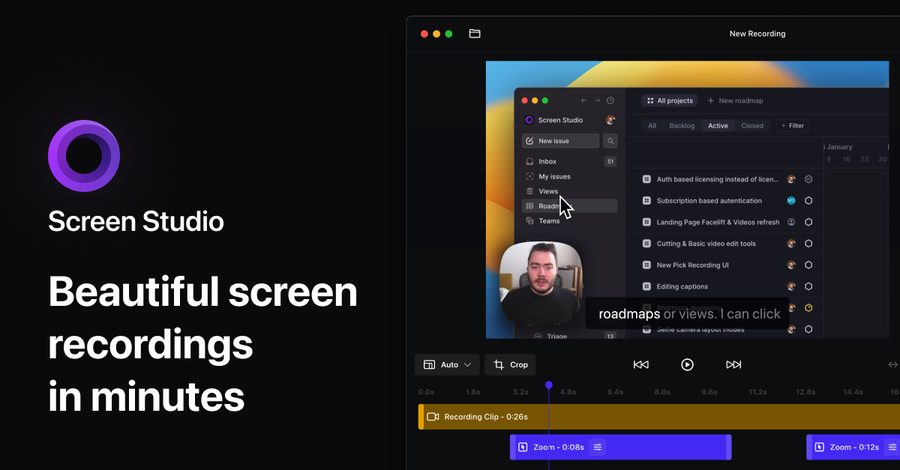
Records your screen and automatically smooths out your mouse movement, adds zoom effects, the works. If you’re making demo videos or tutorial content, it cuts your editing time down significantly.
-
CleanShot X
Does everything macOS’s built-in screenshot tool doesn’t: delayed capture, scrolling capture, built-in annotation tools, all in one place. Something I use dozens of times a day.
-
LightShot
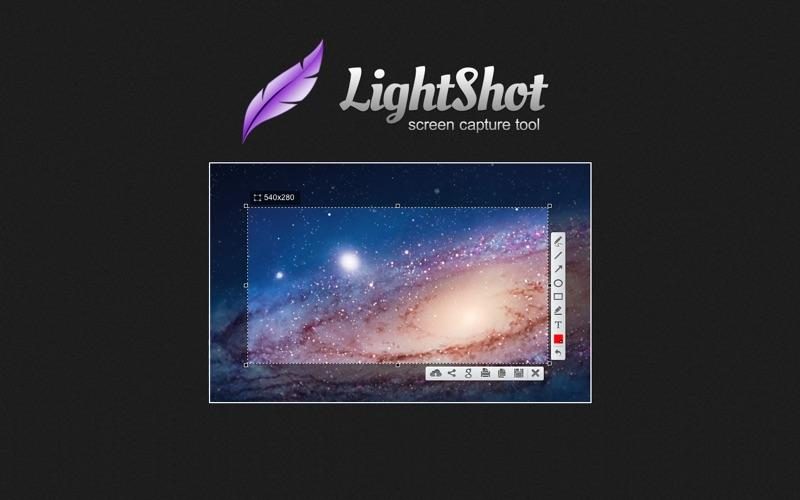
A solid starting point if you want something quick and free. Select an area, drop in some arrows or text, and share it right away.
-
Skitch
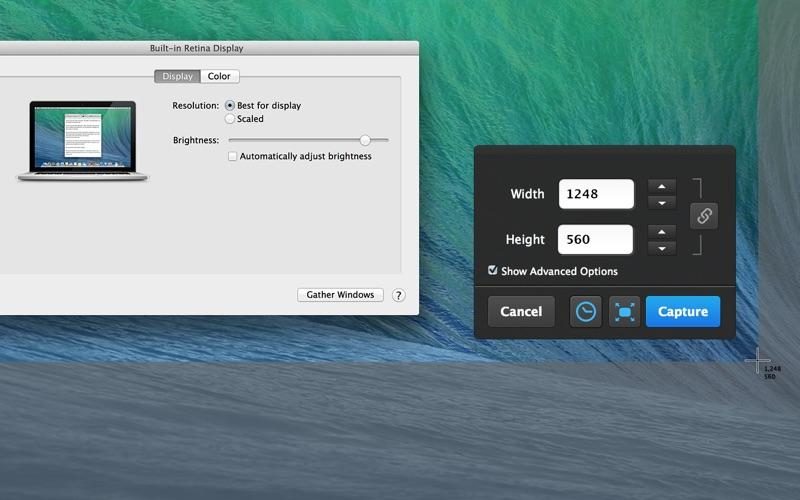
Evernote’s screenshot markup tool. Still genuinely useful for simple stuff — arrows, boxes, quick text — especially when you need to share visual feedback fast.
Productivity & Text Editing
-
Amphetamine
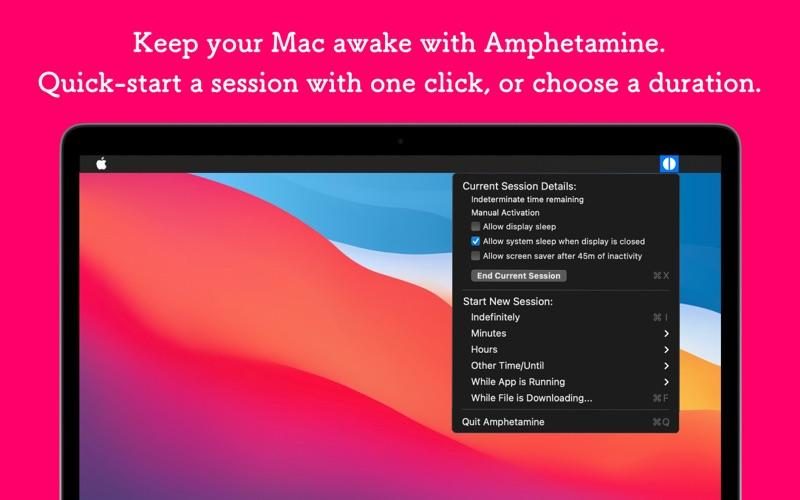
For every moment you need your Mac to stay awake — downloading a big file, running a presentation, connected to an external display. Simple, but one of those tools I reach for often.
-
CotEditor
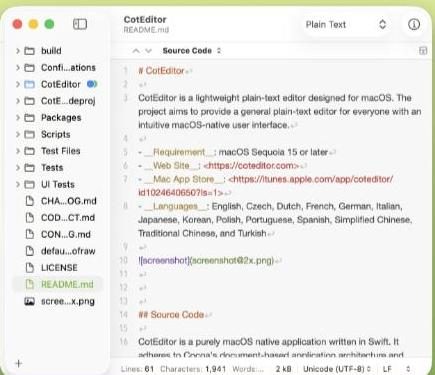
Sometimes firing up VS Code just to jot down a quick note or peek at a config file feels like overkill. CotEditor fills exactly that gap: lightweight, opens instantly, and comes with syntax highlighting built in.
-
PDFGear
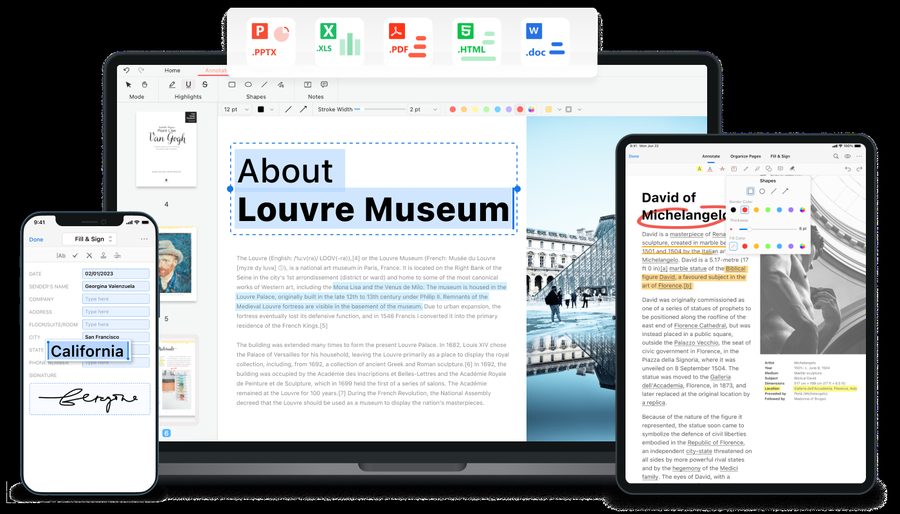
For signing, filling out forms, or converting PDFs without needing an Adobe subscription — a genuinely capable free alternative.
-
Visual Studio Code [Recommended]
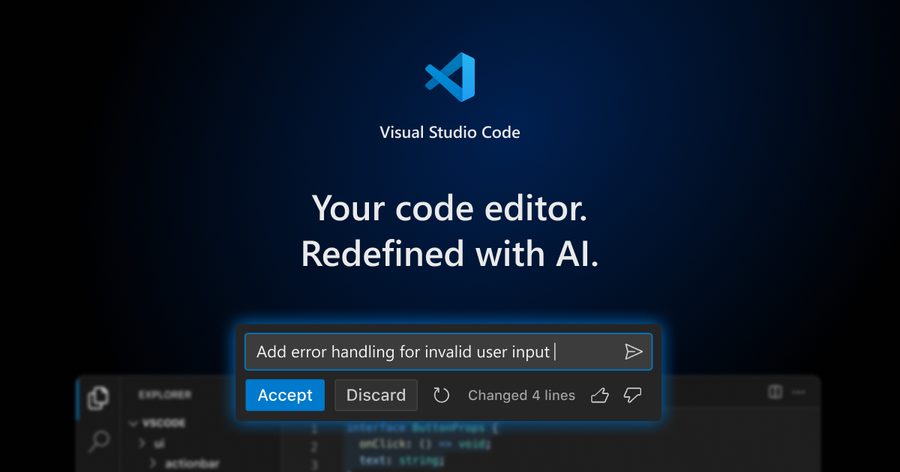
Where nearly all of my actual development work happens. The extension ecosystem is so broad that whatever language you’re working in, you can shape it into exactly the setup you want.
Calendar & Time Management
-
Itsycal
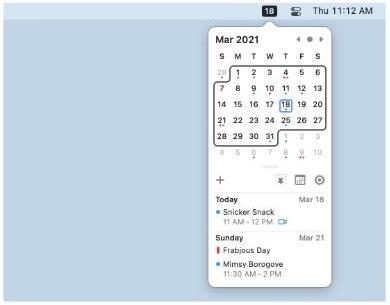
A tiny, clean calendar that lives in your menu bar. Syncs with the macOS Calendar app, so you never have to open a separate window just to check today’s date.
-
Fantastical [Recommended]
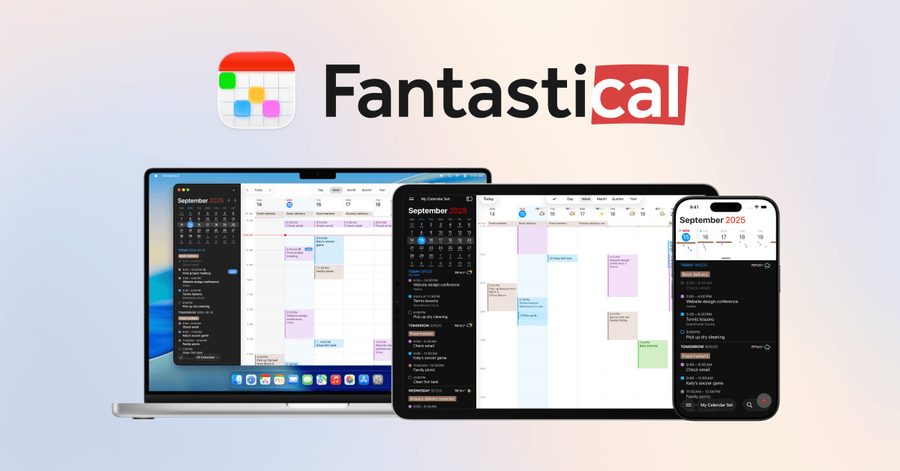
Adding events in natural language — literally typing "meeting tomorrow at 3pm" — genuinely saves time once you get used to it. Also great if you need to see multiple calendars merged into one view.
-
Time Out [Recommended]
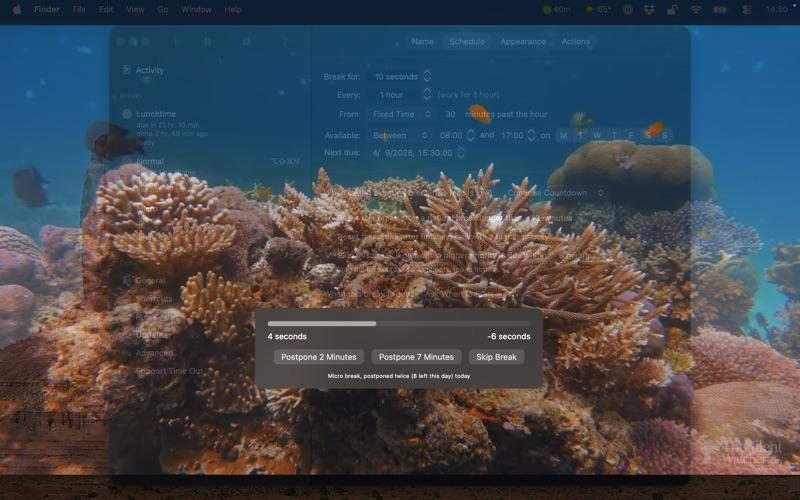
If you’re the type who forgets to look away from the screen (most of us are), it locks your screen at set intervals to force a break. Simple idea, but it actually works.
Window & Space Management
-
Swish
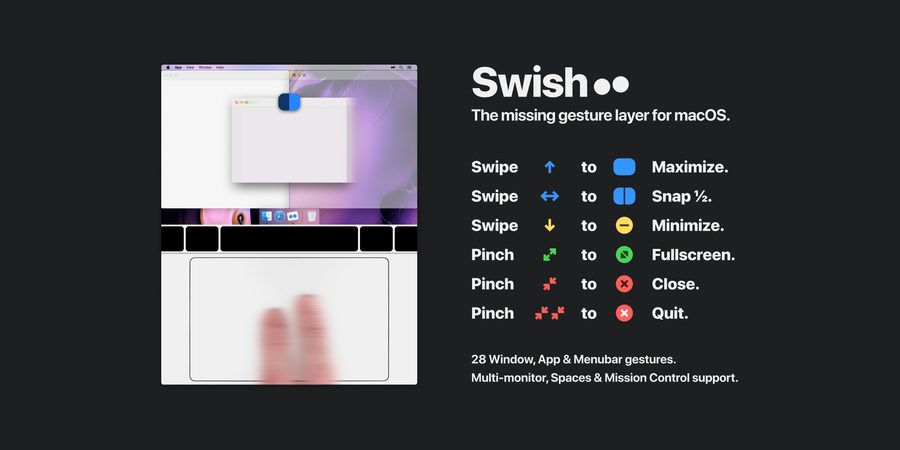
Lets you resize and reposition windows with trackpad gestures. A nice option if you’d rather keep your hands off the mouse entirely.
-
Rectangle [Recommended]
Free and open source, yet it doesn’t lose out to any of the paid alternatives. Keyboard shortcuts snap windows to halves, quarters, or full screen instantly. One of the apps I recommend most out of this entire list.
-
Magnet [Recommended]
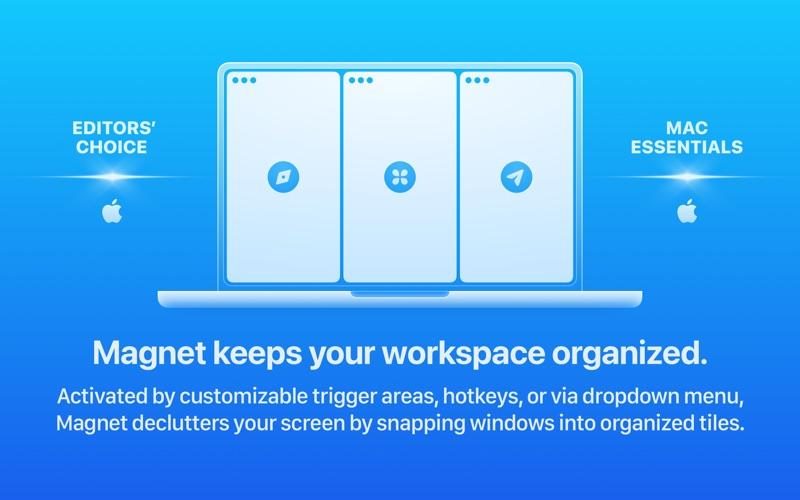
Very similar to Rectangle, but with a stronger drag-to-edge experience — drag a window to a screen edge and it snaps into place automatically. Worth trying both and sticking with whichever feels more natural.
Security & Communication
-
Bitwarden [Recommended]

My password manager of choice for years now. Being open source, having a genuinely usable free tier, and working seamlessly across every platform were all deciding factors for me.
-
Little Snitch [Recommended]
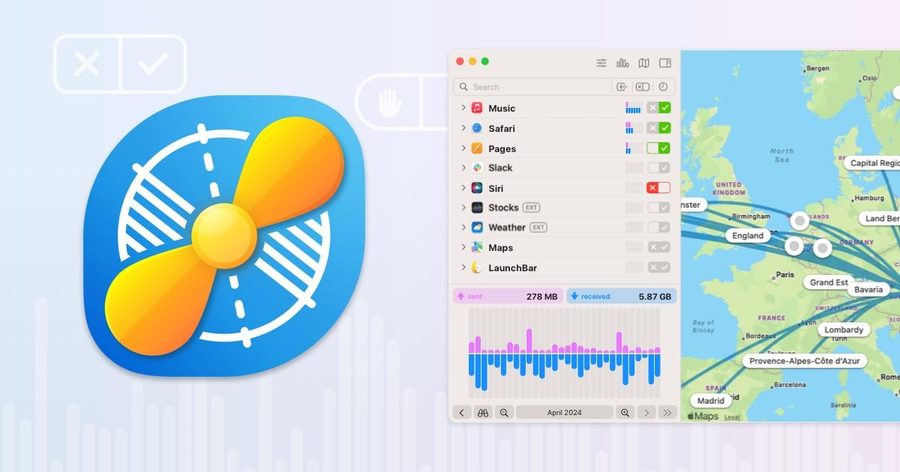
Shows you exactly when an app is trying to reach the internet, and lets you block it if you want. The notifications can feel like a lot at first, but it’s eye-opening to see what’s actually happening in the background on your Mac.
-
Termius [Recommended]
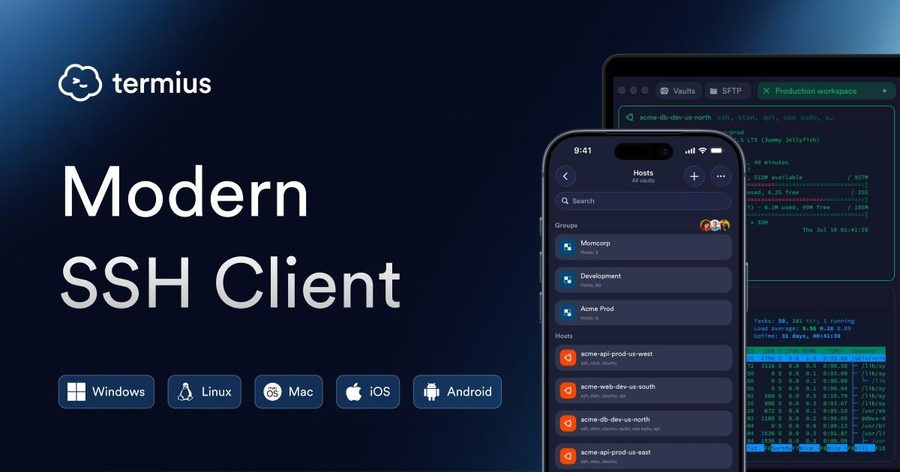
If you work with servers often, having your SSH connections synced across devices makes a real difference. A practical tool for sysadmins and developers alike.
-
Cyberduck [Recommended]
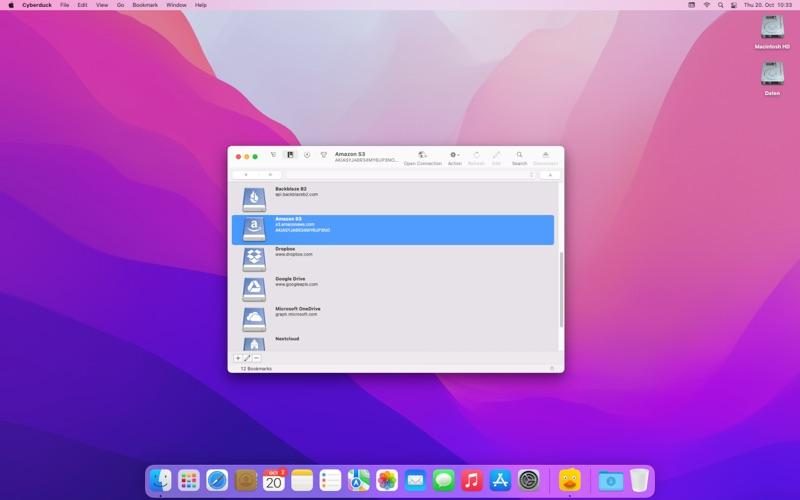
An open-source file transfer client that covers FTP, SFTP, S3, and a handful of other protocols. I don’t need anything else for pushing files to and from a server.
Subscription Services
-
Setapp
Gets you access to a good chunk of the apps on this list through a single subscription. Makes sense if you’d rather pay one monthly fee to try things out than buy each app separately — they also offer a free first month.
In closing
The apps on this list were chosen to meaningfully improve your Mac experience and boost your productivity. I’d recommend trying at least one app from each category. Tools like Raycast, CleanShot X, and Rectangle in particular will make a big difference in your daily workflow.
You might also consider a Setapp subscription to try out many of these apps at once — they offer a free first month, and a single subscription gets you access to a lot of premium software.
This list is my own personal reference for setting up a new Mac — I’ll keep updating it over time, and I’d love to hear your suggestions in the comments.